What you need
You will need a development environment, like Visual Studio Code (which we will use in this set-up). If you don't have one yet, you can download one or use the web version if they have one.
For this set up, we chose to use GitHub Pages, OSF (Open Science Framework) and DataPipe.
We'll use GitHub Pages to host the experiment online. For that we'll need a GitHub account.
We'll use OSF to store the resulting data, you'll need an account there as well.
We'll use DataPipe to be the bridge between the two previous tools.
If you use other means, feel free to make the necessary adjustments.
Otherwise, log onto these websites or create an account on each using the Sign Up button:
Set up Visual Studio Code
Download the following code zip file. Unzip it. Open VSCode and open the folder (from the Start page or via File>Open Folder).
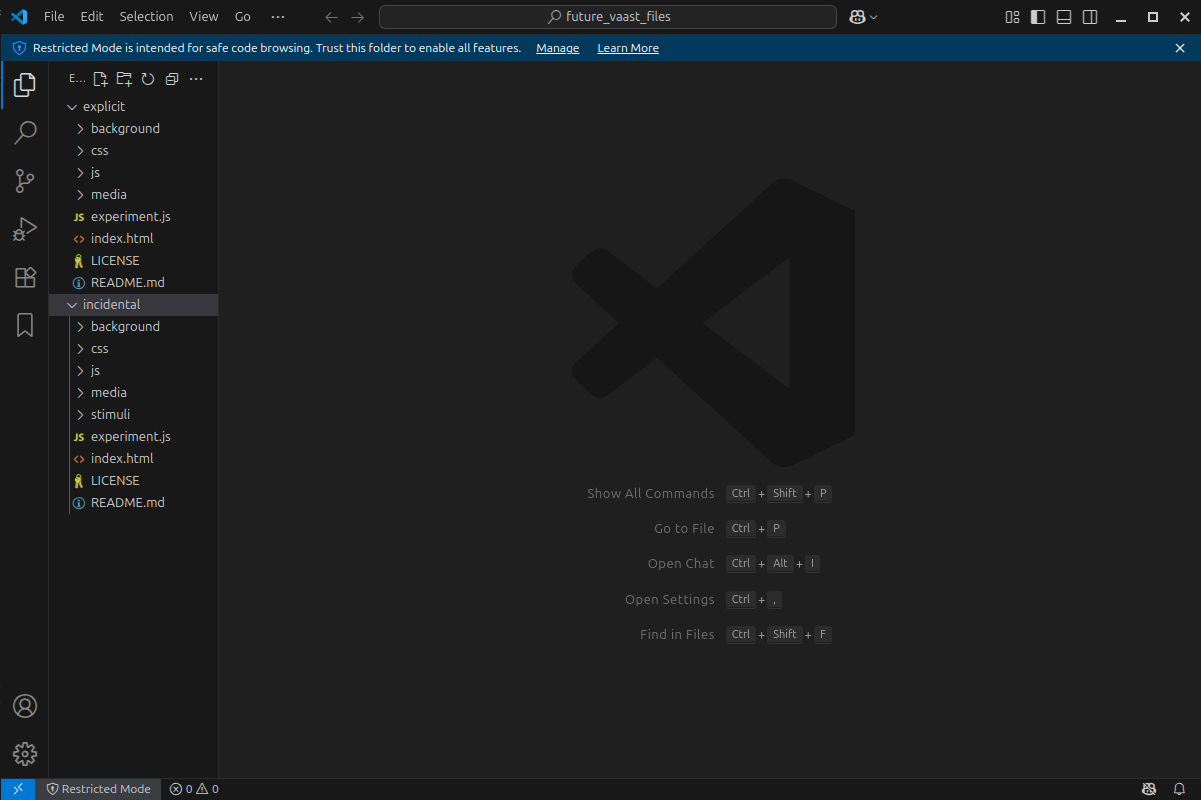
You should see two folders, named incidental and explicit. Each folder contains all the needed files for the specific experiment.
Go to the home page to learn about the differences between the two versions.
Now, go to the left-hand side of your VSCode, to the Source Control logo (
Make all the necessary changes
Once you have linked your local version of the folder to the distant one, you can start making the changes you want.
Know that to save these changes to the distant repository (online on GitHub), you'll need to do git add . then git push and add a message,
click the tick in the upper right corner to validate.
This will update your distant repository with the local changes.
Whether you chose the incidental or the explicit version, there are a number of changes you could make. Here's a (non-exhaustive) list of things you might want to change, according to the specific experiment you want to run:
- The stimuli (words or images)
- The background images (see this paragraph in the home page, for more information on the different backgrounds available)
- The amount of training and testing trials (i.e., how many times the participants see a stimulus that they have to approach/avoid)
- The instructions
- The end:
- Adding demographic questions
- The end page
- Etc.
If you want to try the experiment at any time, you can use the Live Server VSCode extension that you can download directly from the application.
Now that you've made all the changes you want, it's time to dive into how to save your data. As explained above, we'll use OSF (Open Science Framework) to hold the data.